Everything you need to do the work.
Plan it on a board. Start it with one click. Here's everything Kepler Tracker does today.
Get it out of your head in seconds.
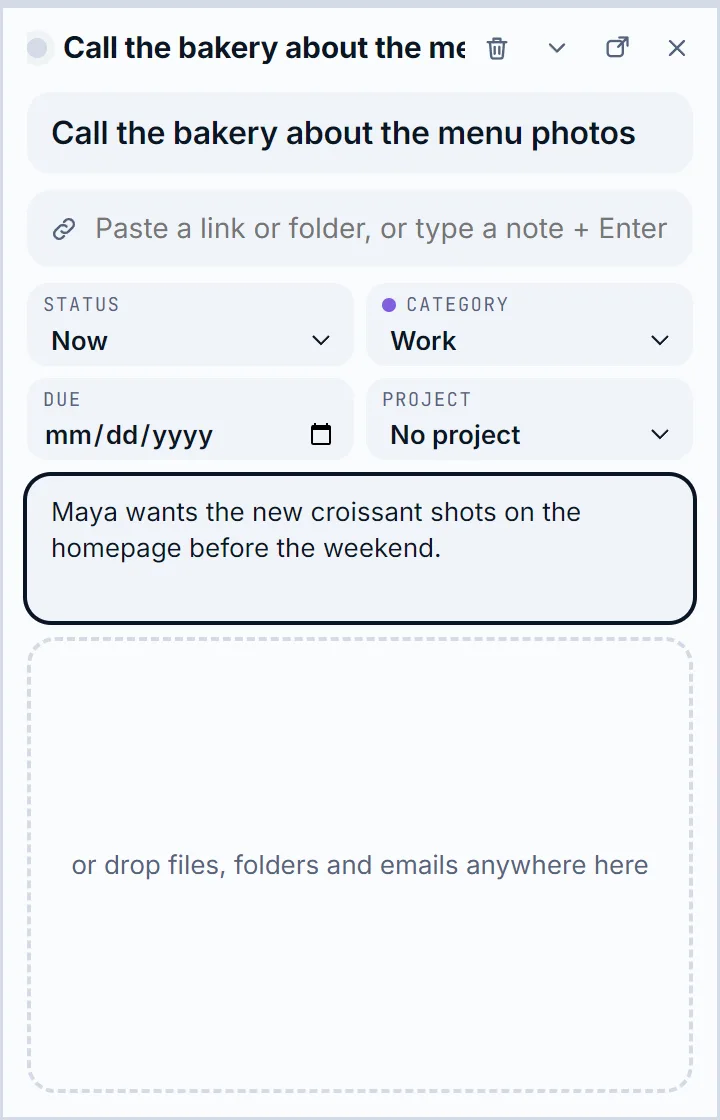
A keyboard shortcut pops up a small quick window wherever you are. Type a name, pick a status, paste a link or drop a file. It disappears and you are back where you were.
- Quick window: press Alt+` (the key under Esc) anywhere in Windows. You can change it.
- + Capture and the N key open the same window from the board.
- Paste anywhere: a link or folder path becomes a new task. Paste over a card to attach it there.
- Drag and drop files, folders, links and Outlook emails onto the board, a card or a column.
- New-task defaults: choose the status, category, project and due date new tasks start with.
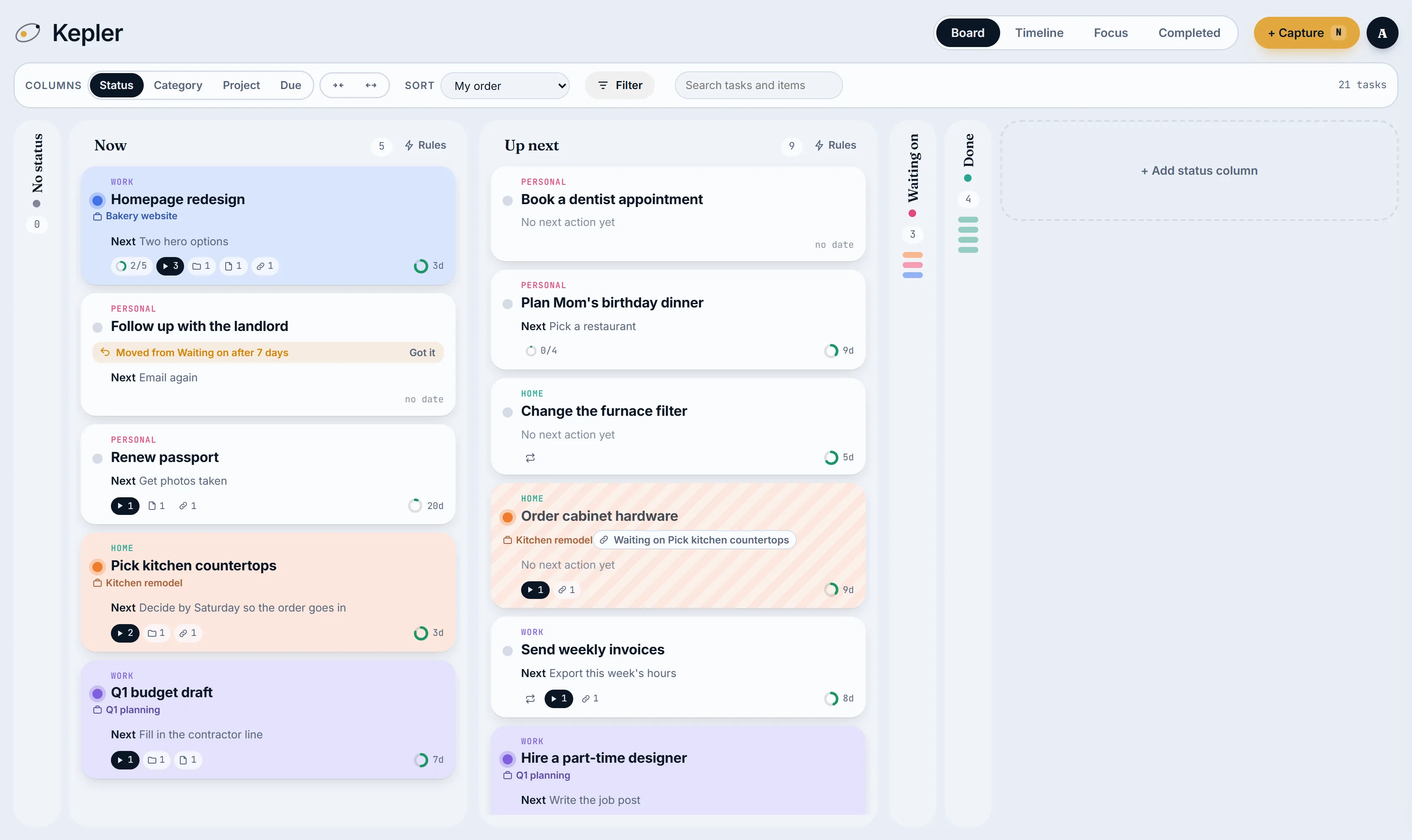
See everything on one board.
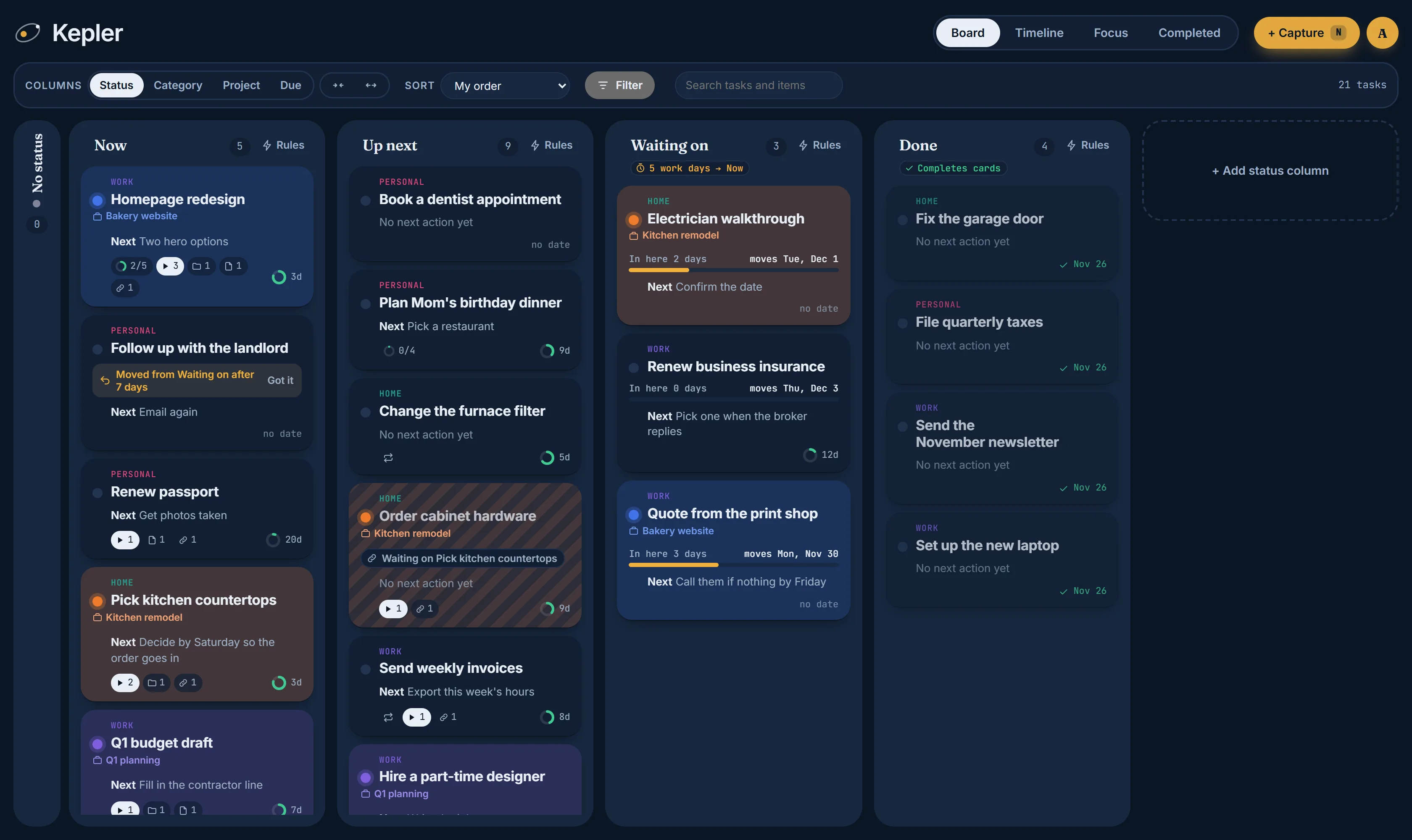
Cards in columns, arranged by status, category, project or due date. Drag cards between columns, rename and colour columns, and add your own.
- Each card shows its next action, progress through its steps, what Start work will open, and how long until it is due.
- Filter: Category, Project, Status, Due and Activity, remembered until you clear them.
- Ready now shows only what you can actually do today. Quiet a week shows what has stalled.
- Squeeze any column to a thin sliver. Drop a card on a sliver and it still moves there.
- Search task names, summaries, notes and attached links.
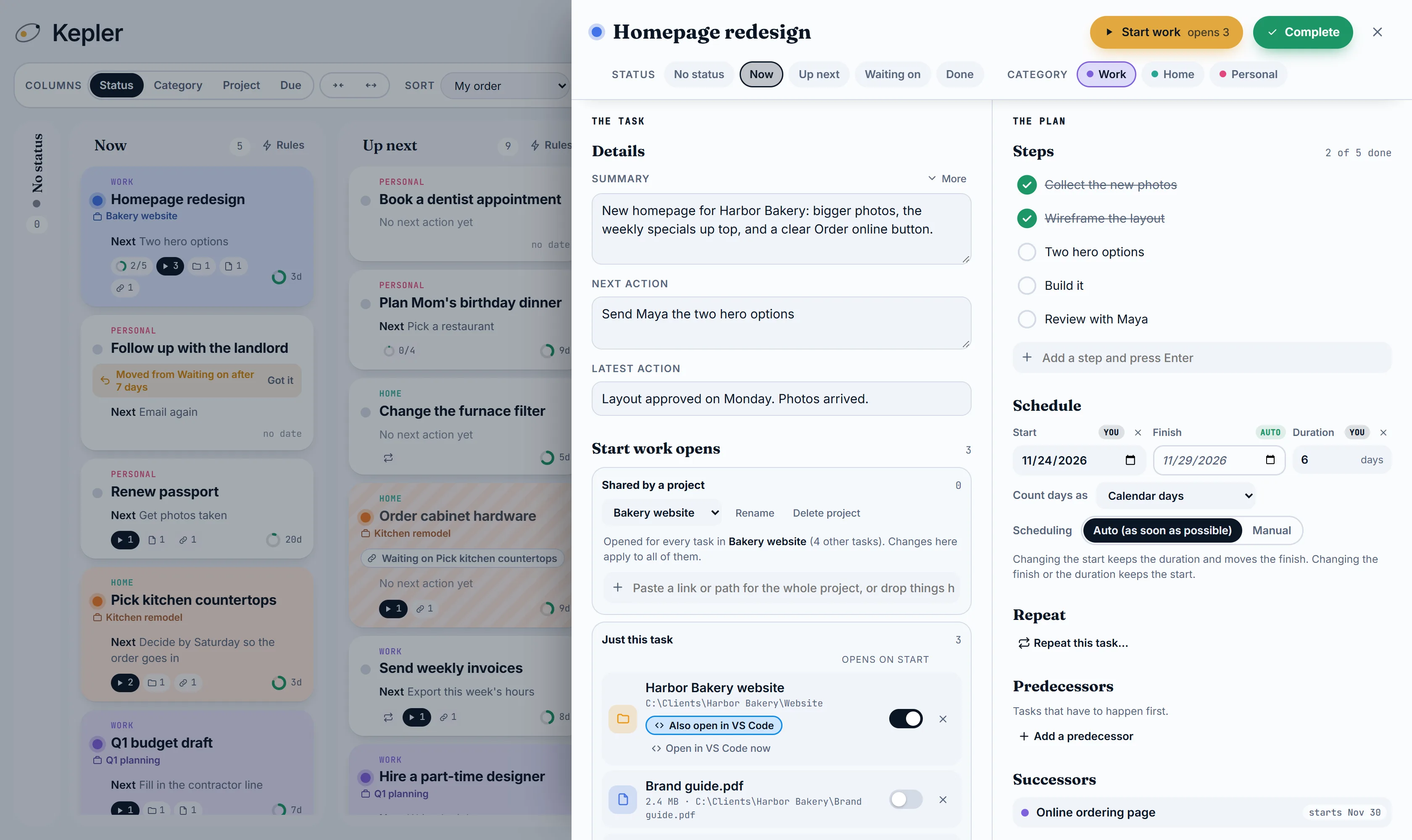
Everything about one task, in one place.
A summary, the next action, a checklist of steps, the schedule, and what Start work opens.
- Steps: a checklist. Any step can become its own task when it turns out to be bigger.
- Schedule: start, finish and duration, in calendar days or working days. Auto starts a task when the ones before it are done.
- Repeat: daily, weekly on chosen days, monthly (the 15th, the last Friday) or yearly.
- Predecessors and Successors: what has to happen first, and what is waiting on this.
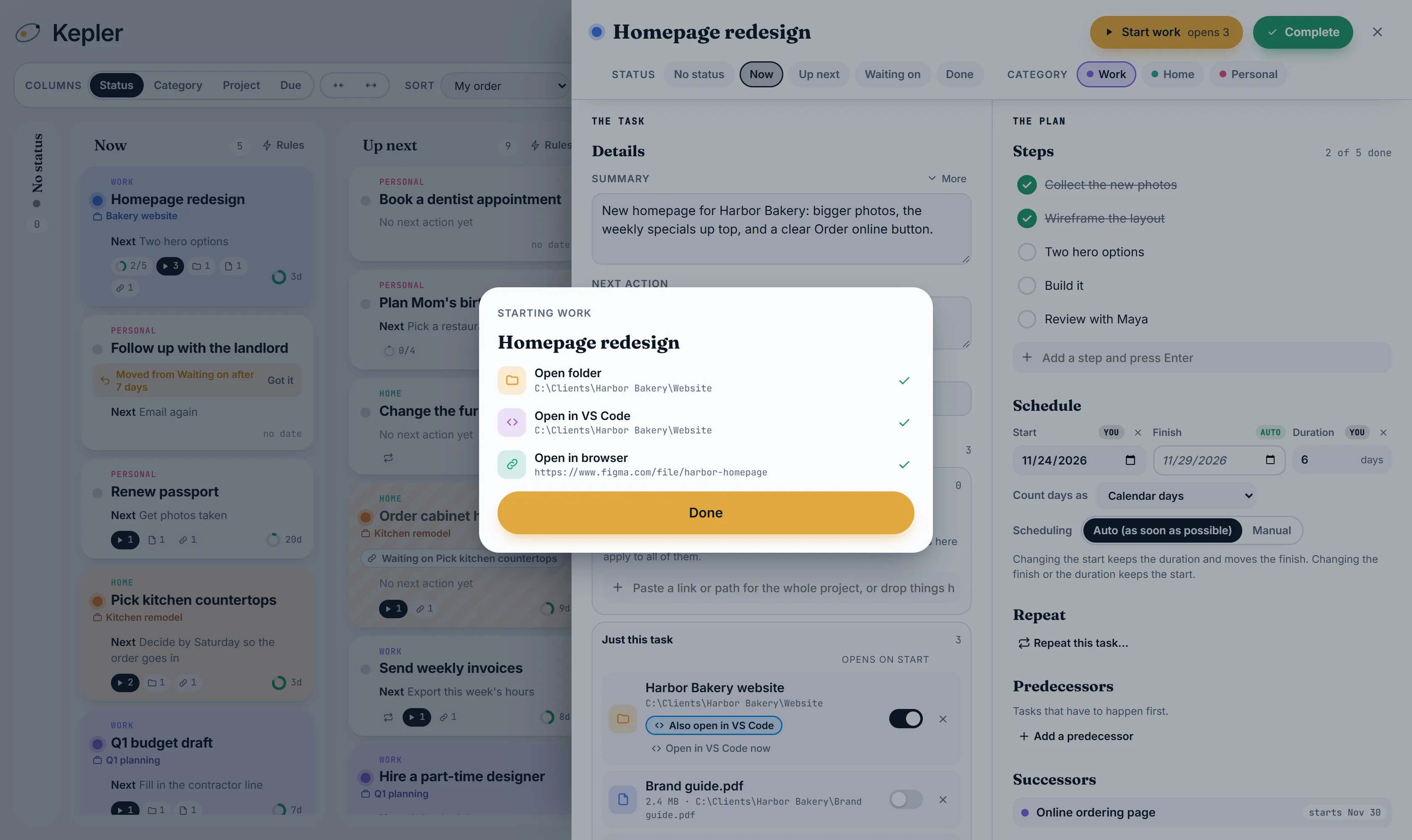
The task board that opens your work for you.
Press Start work (or Enter in Focus) and Kepler Tracker opens everything attached: folders in File Explorer, files in their usual program, links in the browser, emails in Outlook, programs, and folders in VS Code.
- A small window shows each one opening, with a tick.
- The first time a file, folder or program opens, you confirm it, with an "always allow" option.
- Projects share attachments: put the project folder on the project once, and every task in it opens it.
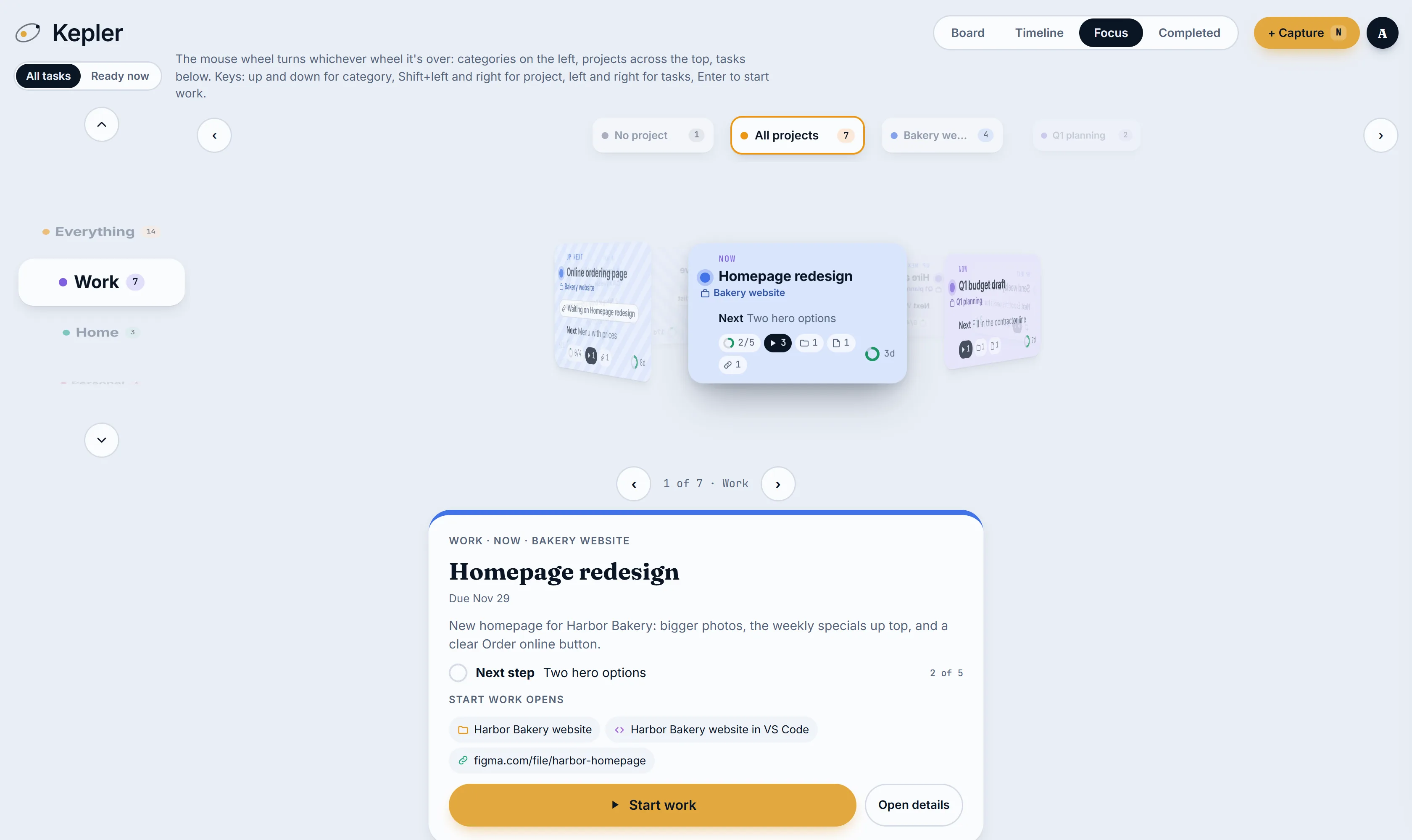
One thing at a time.
A carousel of cards with the current task large in the middle and its next step below. Turn the wheels with the mouse or arrow keys, and press Enter to start work.
- Categories down the left, projects across the top, tasks in the middle.
- The quick window has the same wheel, so you can pick your next task without opening the main window.
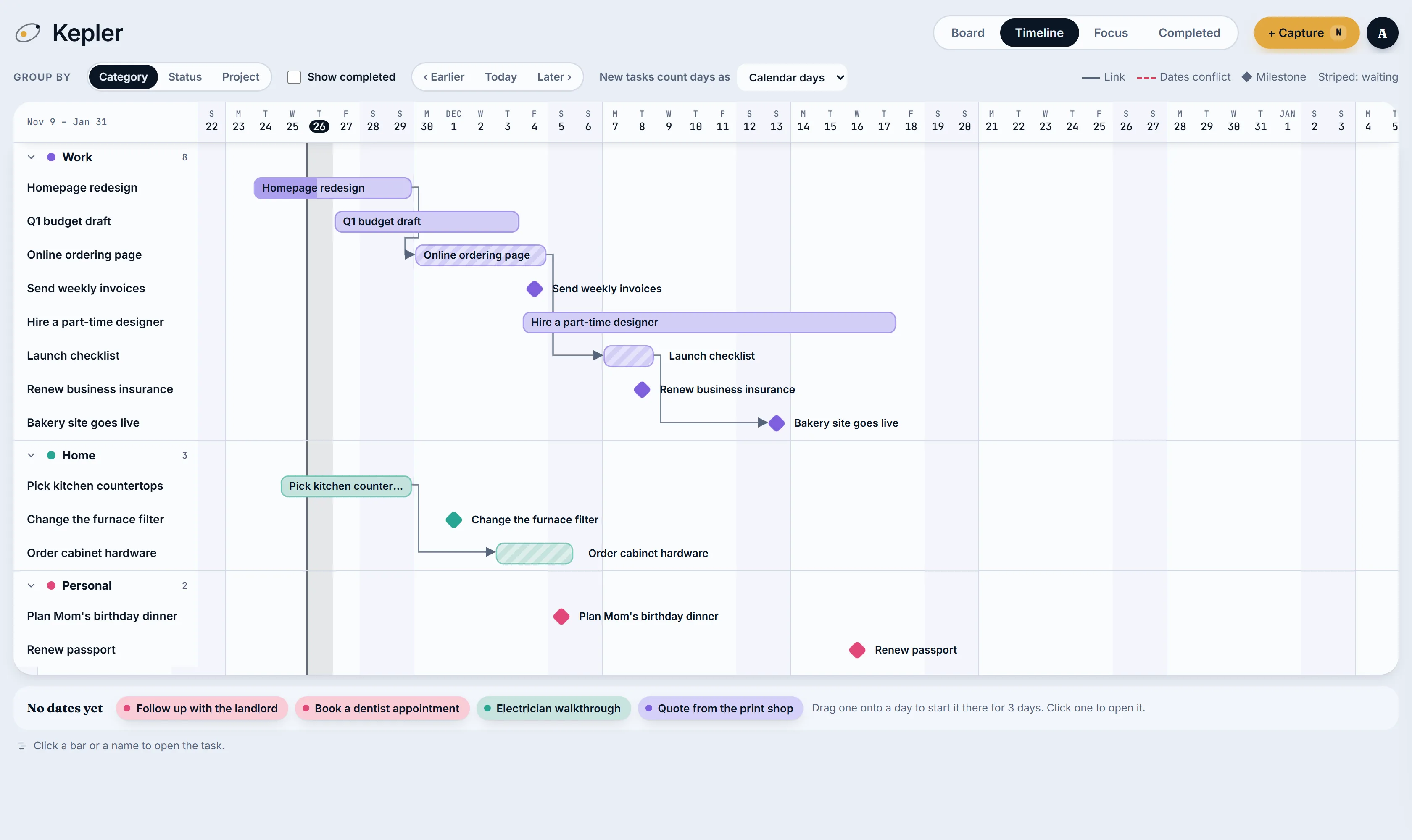
When, and what depends on what.
A timeline grouped by category, status or project. Bars are tasks with a start and finish; diamonds are milestones with only a deadline.
- Hover a task: it and the tasks right before and after it stay bright, and everything else fades back.
- Drag to plan: move a bar to change its dates, or drag an end to make it longer or shorter.
- Pull a milestone into a bar, or push a bar back into a milestone.
- Conflicting dates show in red. The dates stay at the top while you scroll.
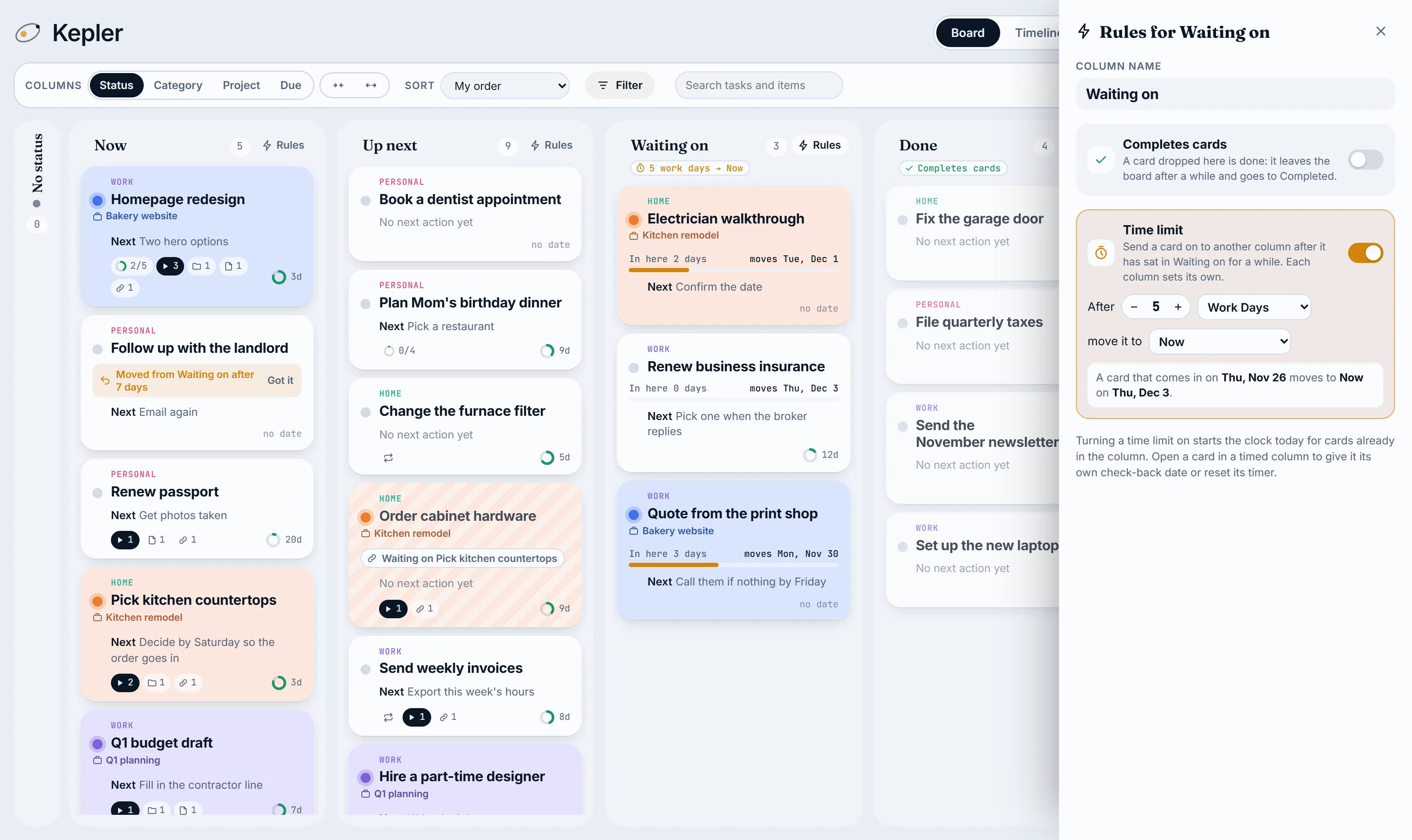
A board that moves by itself.
Every status column has Rules. Waiting on a reply? If nothing happens in a week, the card comes back to Now on its own.
- Completes cards: a card dropped here is done. Any column can do it.
- Time limit: after a set number of calendar or working days, a card moves to the column you choose.
- Chain limits across columns and cards travel along: Up next, Now, Waiting on, Done.
- On any card, Reset timer or set its own check-back date.
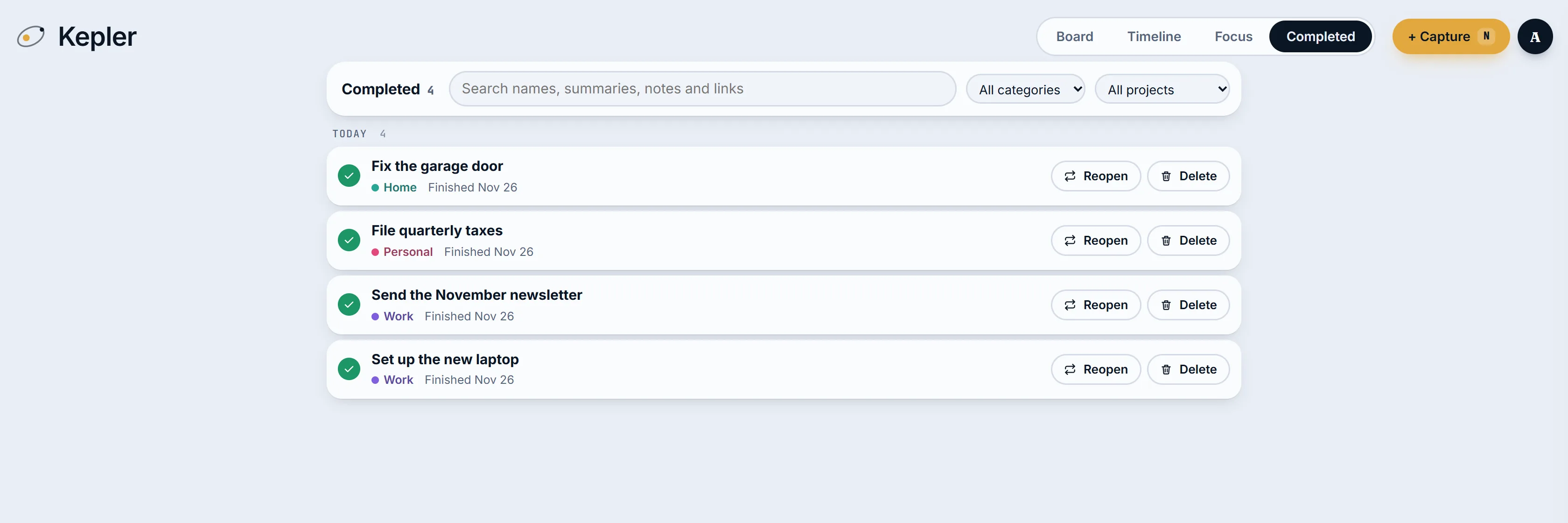
Everything you've finished.
Newest first, grouped by day. Search it, filter it, Reopen a task, or Delete it (with Undo). Done cards also stay on the board for as many days as you choose.
Light, dark, or match your computer.
Your own columns, categories and projects, with your own colours and names. Settings, filters and squeezed columns follow you to every computer you sign in on.
- Appearance: Light, Dark, or Match my computer.
- Card colours by project, by category, by column, or custom per card.
The Windows desktop app
Everything in the browser version, plus:
- The quick window and its global keyboard shortcut.
- Drag in files, folders and Outlook emails. Kepler Tracker records where they are.
- Start work opens folders, files, programs, emails and VS Code.
- Lives in the system tray and can start with Windows.
- Updates itself in one step: when a new version is ready, the button says Restart to update.
Accounts and privacy
- Everyone has their own board. Nothing is shared between accounts.
- Attached files are never uploaded. Kepler Tracker stores where they are and opens them from there.
- An email dragged out of Outlook is saved on your own computer, not uploaded.
- Sign in from any browser or the desktop app. Password recovery by email. Accounts lock after repeated wrong passwords.